Selection email and documents before the offer
Updated
Before preparing an official offer letter, hiring teams often need candidate documents such as recent payslips, resignation acknowledgement, or proof of current CTC. OneATS lets you request these documents right when a candidate is selected, using custom document sets and an automated selection email.
1. Configure document sets by role
Go to Settings → Onboarding checklists → Before the Offer. Create document sets tailored to specific roles or levels (for example, Engineering hires requiring 3 months of payslips, Form 16, and previous relieving letters; freshers requiring degree certificates and ID proof).
2. Send the selection email
- 1When moving a candidate to Selected, choose Send Selection Email.
- 2Select the document set required for the position. The email lists each required item automatically.
- 3Review or edit the email body. You can save your edits as the company default template.
- 4Click Preview to check the email and upload link, then click Send.
3. What the candidate sees
The candidate receives the selection email from your company hiring team. Clicking the secure link opens a clean upload page where they can review the required checklist and upload PDFs or images. No login or password is required.
4. Review, verify, or send back
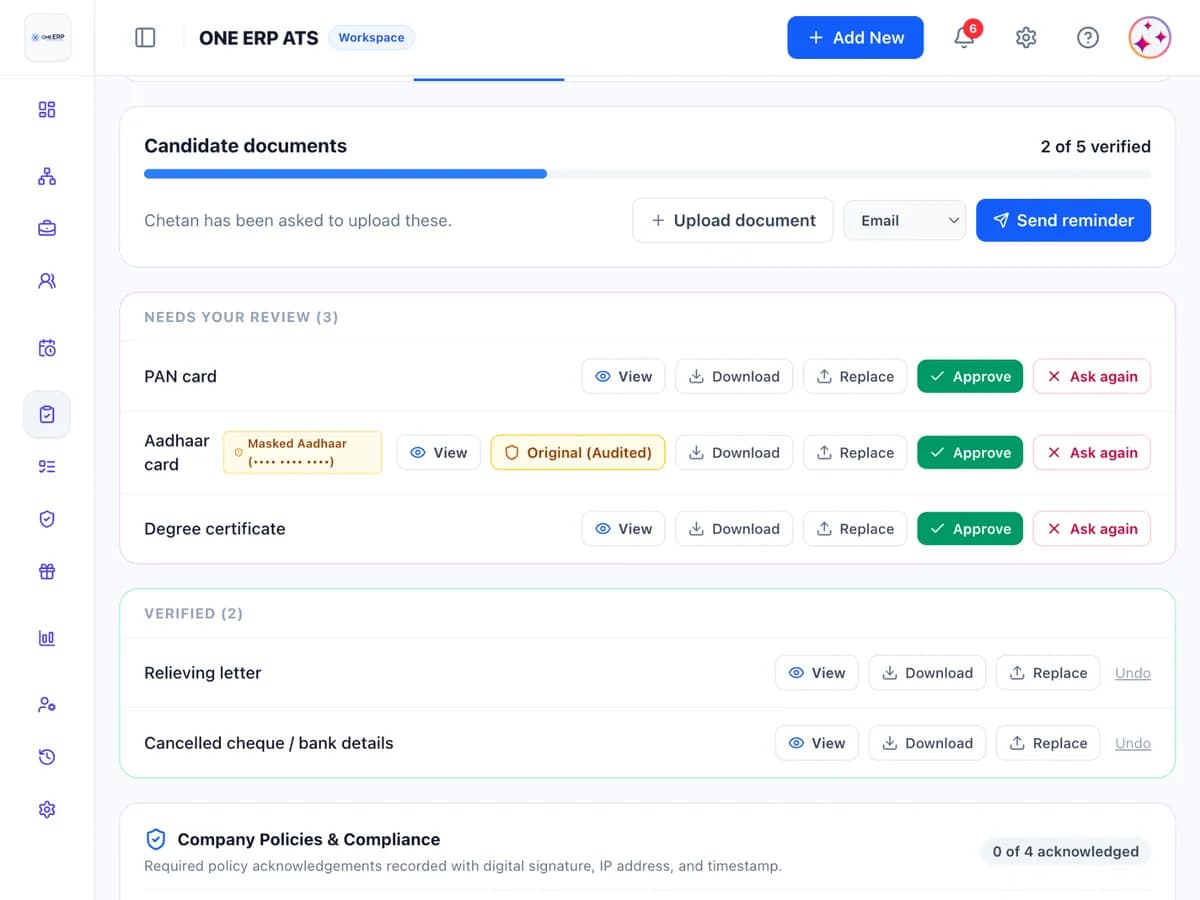
- As documents are uploaded, HR sees them on the candidate's Onboarding tab.
- Mark each document Verified or click Send back with a note explaining what needs correcting (e.g. "Please provide all 3 consecutive months of payslips").
- HR can also upload documents on behalf of the candidate if received via email or WhatsApp.
- OneATS sends automated reminders if requested documents are still pending.
Was this article helpful?
Didn’t find what you needed?
Contact support and we’ll help you out.